
How to Connect Google Ads to an AI Copilot: A Step-by-Step Guide for Marketers
September 6, 2026 · 6 min read
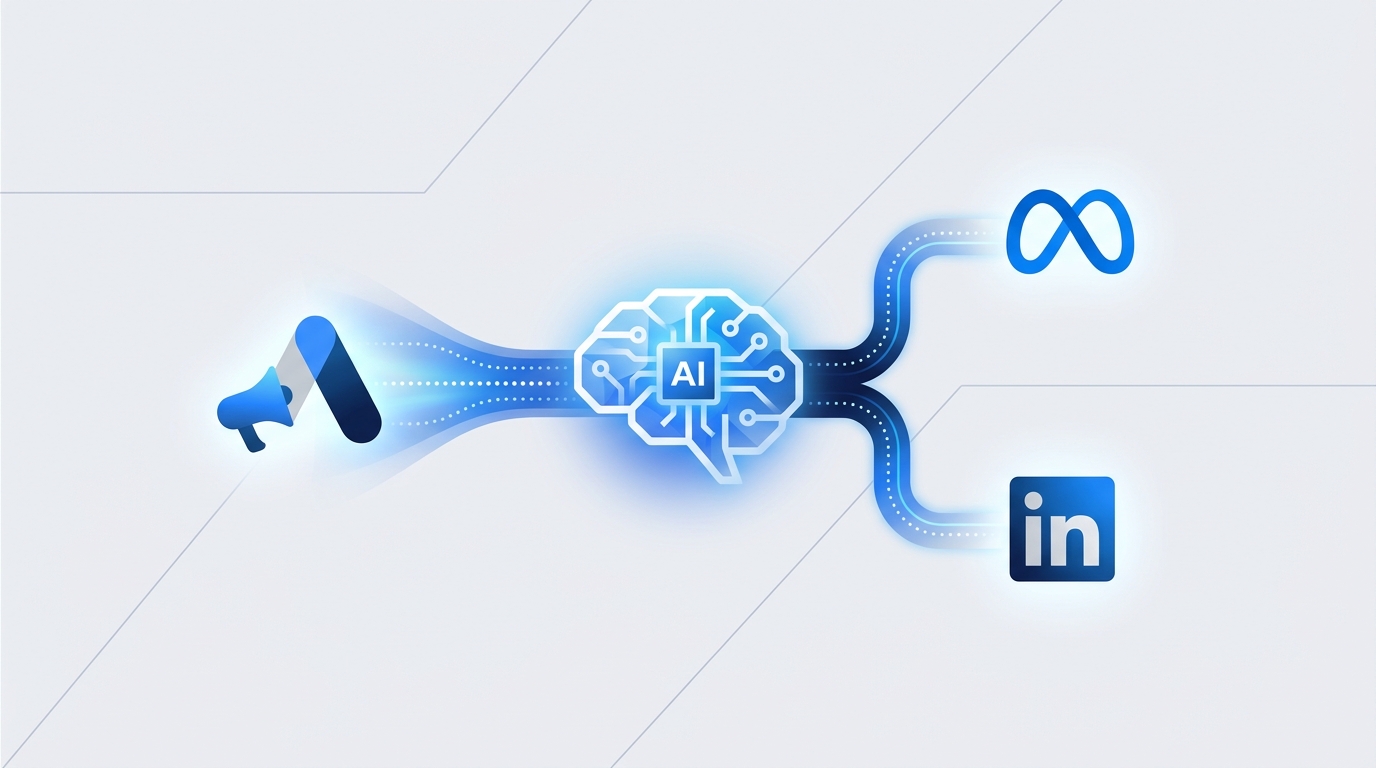
Connecting Google Ads to an AI copilot involves authorizing access via API integration within your marketing operations platform. This process typically requires you to log into your Google Ads account through a secure portal, grant the necessary permissions for campaign management and reporting, and then configure the connection settings within the copilot's interface to sync your accounts.
For modern marketing teams, the Google Ads interface is a powerful but increasingly siloed environment. When your search and display campaigns run in one world, and your social ads, influencer marketing, and organic content run in others, you create blind spots. Answering a simple question like, "What was our true cross-channel cost per acquisition last month?" can become a manual, time-consuming task.
This is where connecting Google Ads to a central AI copilot becomes a strategic necessity, not just a technical convenience. It’s about transforming your fragmented channels into a cohesive, intelligent marketing engine. This guide will walk you through why this connection is critical, how to do it step-by-step, and what you can achieve once it's done.
Why Connect Google Ads to an AI Copilot?
Integrating Google Ads with a marketing copilot platform is about breaking down data silos and augmenting your team's capabilities with AI. It moves you from reactive, channel-specific tweaks to proactive, holistic strategy.
Unified Analytics and Reporting
Instead of exporting CSVs and wrestling with spreadsheets, a direct connection pipes your Google Ads performance data—impressions, clicks, conversions, CPA, ROAS—directly into a centralized dashboard. You can view it alongside metrics from Meta, LinkedIn, Pinterest, and your organic social channels. This single source of truth allows you to measure the entire customer journey and make smarter, data-backed decisions.
AI-Powered Optimization and Creation
An AI copilot doesn't just display data; it interprets it. It can identify performance trends you might miss, suggest budget reallocations between campaigns (and even platforms), and forecast future results. Furthermore, it can leverage generative AI to create dozens of ad copy variations, headlines, and descriptions for your campaigns based on top-performing assets from all your connected channels.
Streamlined Campaign Management
Jumping between the Google Ads UI, Meta Business Manager, and LinkedIn Campaign Manager drains time and focus. A unified platform allows you to monitor performance, pause campaigns, adjust budgets, and review creative across all your ad networks from a single interface. This efficiency gain frees up your team to focus on high-level strategy rather than administrative tasks.
Enhanced Collaboration and Approvals
How do you currently get approval for new ad copy or a budget increase for a Google Ads campaign? Often, it's a messy process of emails, Slack messages, and shared documents. An AI marketing operations platform like MarketPilot builds these workflows directly into the system. Team members can comment on, edit, and approve ad assets and campaign changes before they go live, creating a clear audit trail and reducing the risk of errors.
The Step-by-Step Connection Process
While the exact UI will vary between platforms, the core process for connecting Google Ads follows a standard, secure protocol called OAuth 2.0. This means you never have to share your Google password with the third-party application.
Step 1: Navigate to Your Platform's Integration Hub
Log into your AI copilot or marketing operations platform. Look for a section in the settings or main navigation labeled "Integrations," "Connections," or "Connected Accounts."
Step 2: Select Google Ads and Initiate Authorization
In the list of available integrations, find and click on the Google Ads logo. This will trigger a button like "Connect Account" or "Add New Connection." Clicking this will redirect you to a secure Google login page.
Step 3: Authenticate Your Google Account
On the Google-hosted page, you'll be prompted to sign in to the Google account that has access to your Google Ads account. If you're already logged in, you may just need to select the correct account. This step ensures that only authorized users can grant access.
Step 4: Grant the Necessary Permissions
Google will present a screen detailing the permissions the application is requesting. For a comprehensive copilot, this typically includes:
- Manage your Google Ads campaigns (
adwords): This permission is essential for the platform to make changes on your behalf, such as adjusting budgets, pausing ads, or creating new campaigns. - View your Google Ads campaign data: This allows the platform to pull in performance metrics for reporting and analysis.
- Offline access: This permission allows the platform to sync your data periodically without requiring you to manually re-authenticate every time.
Review these permissions and click "Allow" or "Grant Access" to proceed. Reputable platforms will only ask for the permissions required for their features to function.
Step 5: Select Your Ad Account(s)
After granting permission, you'll be redirected back to the copilot platform. It will now display a list of the Google Ads accounts (and any Manager Accounts or MCCs) associated with your Google login. Select the specific ad account(s) you wish to connect to the platform and click "Confirm" or "Finish."
Step 6: Verify the Connection
Your Google Ads account should now appear in your list of connected accounts, often with a green "Connected" status indicator. Navigate to your analytics dashboard or ads manager within the platform to confirm that campaign data is beginning to populate. Note that the initial data sync can sometimes take a few minutes to a few hours, depending on the volume of data.
Google Ads Native UI vs. AI Copilot: A Comparison
While the Google Ads interface is robust for managing Google-specific campaigns, it inherently lacks a multi-channel perspective. Here’s how it compares to managing your ads through a unified AI copilot.
| Feature | Google Ads Native Interface | AI Copilot (e.g., MarketPilot) |
|---|---|---|
| Reporting & Analytics | Deep, but siloed within the Google ecosystem. | Unified dashboard with data from all paid and organic channels. |
| AI Creative Generation | Limited to responsive ad suggestions and auto-assets. | Generates copy and ideas based on cross-channel performance. |
| Budget Optimization | Strong intra-channel tools (e.g., PMax, bid strategies). | AI-driven suggestions for budget shifts between platforms. |
| Team Collaboration | Basic user roles and permissions. No structured approvals. | Integrated approval workflows for copy, creative, and budgets. |
| Campaign Management | Comprehensive control over Google Ads campaigns only. | Centralized view and control over Google, Meta, LinkedIn, etc. |
Unlocking Advanced Strategies with Your Connected Copilot
Once connected, you can move beyond simple monitoring and execute more sophisticated marketing strategies.
-
Holistic Funnel Analysis: Create a dashboard that maps the entire customer journey. See how a user who first engaged with a LinkedIn post later converted through a Google Brand Search ad. This unified view helps you assign credit more accurately and understand the symbiotic relationship between your channels.
-
AI-Driven Creative Testing: Use your copilot's AI to analyze your top-performing organic social posts. Ask it to generate five new headlines for your Google Search ads inspired by the language and topics that resonated most with your audience. This breaks down the wall between your organic and paid creative processes.
-
Intelligent Budget Pacing: Set up rules and alerts in your copilot to monitor performance across all your ad platforms. For example, you can create a rule that notifies you if your Google Ads CPA exceeds your target while your Meta Ads CPA is well below it, prompting a strategic budget reallocation.
Choosing the right marketing copilot is key to unlocking this potential. Look for a platform with deep, bi-directional integration for Google Ads—one that not only pulls data but also allows for comprehensive campaign management. A transparent pricing structure and support for all your critical channels are also essential considerations.
By connecting Google Ads to an AI copilot, you're not just adding another tool to your stack. You're building a smarter, more connected, and more efficient marketing operations hub that empowers your team to achieve better results with less manual effort.
Frequently asked questions
Related posts
More on the topics covered in this article.