
Automate Your Inbound Leads: A Marketer's Guide to Email Parser HubSpot Integration
September 13, 2026 · 7 min read
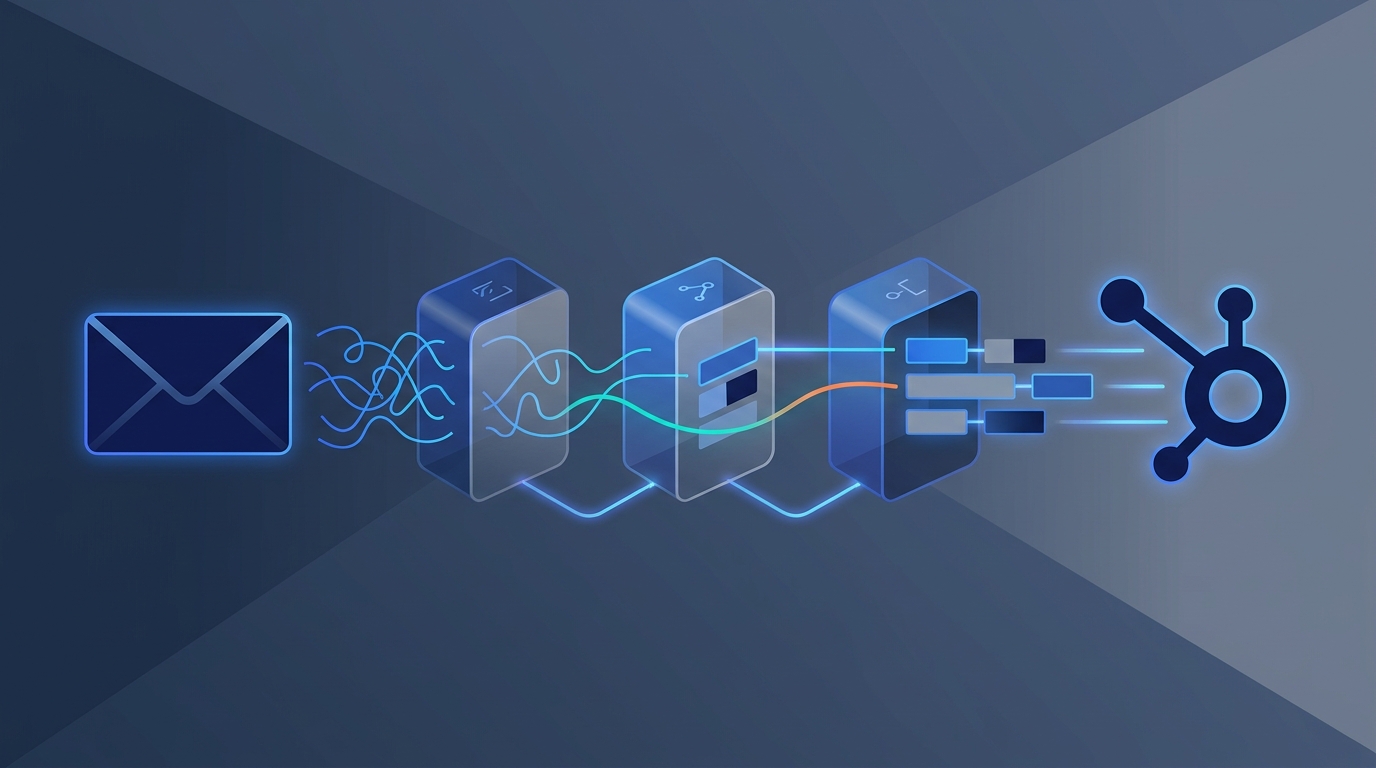
An email parser HubSpot integration is an automated workflow that extracts specific data from incoming emails and sends it directly into your HubSpot CRM. This allows you to automatically create or update contacts, companies, and deals from lead notification emails, contact form submissions, or partner referrals without any manual data entry.
For marketing teams, this is a game-changer. You save countless hours, eliminate human error, and ensure leads are actioned faster. Let's dive deep into how you can set this up to streamline your marketing operations.
Why Marketers Need an Email Parser for HubSpot
Your marketing channels are diverse. While many platforms have direct HubSpot integrations, a surprising number of valuable lead sources still rely on simple email notifications. Manually processing these emails is a time-consuming bottleneck that slows down your sales cycle and introduces errors.
Here are some common marketing scenarios where an email parser becomes essential:
- Third-Party Lead Generation Sites: Many industry-specific directories, review sites (like Capterra or G2), and marketplaces send lead notifications via email. Instead of an employee copying and pasting that data, a parser can instantly create a new contact and deal in HubSpot.
- Website Forms without Direct Integration: You might use a simple contact form plugin, a legacy system, or a third-party widget on your website that doesn't offer a native HubSpot connection. Routing these form submission emails through a parser is a perfect workaround.
- Partner and Affiliate Referrals: When partners send leads via email, a parser can identify the partner, extract the lead's details, and automatically assign the new contact to the correct owner in HubSpot with the proper source attribution.
- Event & Webinar Registrations: If you use an event platform that only sends email confirmations, you can parse these emails to add attendees to specific lists or workflows in HubSpot for pre-event reminders and post-event follow-ups.
- Inbound Email Inquiries: Generic inboxes like
sales@orinfo@are often flooded with potential leads. A parser can be trained to identify inquiries that look like leads, extract the contact information, and create a task for a sales rep to follow up.
How the Email Parser to HubSpot Workflow Works
The concept is straightforward. It's a three-step automated process that acts as a bridge between your inbox and your CRM.
- Receive & Forward: An email containing lead data arrives in your designated inbox (e.g.,
leads@yourcompany.com). You set up an auto-forwarding rule to send a copy of this specific type of email to a unique email address provided by your parsing tool. - Extract & Structure: The email parser tool receives the forwarded email. It uses a template you've created to identify and extract the key pieces of information—like name, email, phone number, company, and message. It converts this unstructured email text into structured data.
- Send & Create: The parser then sends this structured data to HubSpot via an integration (often managed through a workflow automation tool like Zapier or Make). This final step creates a new contact, updates an existing one, or even creates a new deal, populating the HubSpot properties with the data extracted from the email.
This entire process happens in seconds, ensuring your speed-to-lead is as fast as possible.
Choosing the Right Email Parsing Tool
Several tools can handle this job, each with its own strengths. The best choice depends on your technical comfort level, email volume, and budget.
| Feature | Zapier Email Parser | Mailparser.io | Parserr |
|---|---|---|---|
| Best For | Simplicity and users already in the Zapier ecosystem. | High-volume, complex parsing with advanced rules. | Teams needing robust integrations beyond just Zapier. |
| Ease of Use | Very easy. The template builder is intuitive and visual. | Moderate. More powerful, but has a steeper learning curve. | Easy to Moderate. Clean UI with powerful features. |
| Integration | Native to Zapier, making HubSpot connection seamless. | Integrates with Zapier, Make, and offers webhooks. | Direct integrations with HubSpot, Salesforce, etc. |
| Template Setup | Highlight text in a sample email to create fields. | Advanced rules engine (e.g., find text after a certain phrase). | Visual template editor with pre-built rules. |
| Pricing Model | Included in paid Zapier plans (based on task usage). | Subscription based on email volume per month. | Subscription based on email volume per month. |
For most marketing teams, Zapier's Email Parser is the perfect starting point due to its simplicity and tight integration with the thousands of other apps in its ecosystem, including HubSpot.
Step-by-Step: Connecting an Email Parser to HubSpot with Zapier
Let's walk through setting up a workflow to parse lead notification emails and create contacts in HubSpot using Zapier.
Step 1: Set Up Your Parser Mailbox
- Log in to your Zapier account.
- From the main menu, navigate to Email Parser.
- Click Create Mailbox. Zapier will generate a unique, random email address (e.g.,
xyz123@robot.zapier.com). This is where you'll forward your lead emails.
Step 2: Send a Sample and Create a Template
- Go to your own inbox and find a real example of the lead notification email you want to parse.
- Forward this email to the unique Zapier mailbox address you just created.
- Go back to the Zapier Email Parser screen and refresh. Your email should appear.
- Now, you'll create the template. Highlight the first piece of data you want to extract (e.g., the person's name) and give it a name (e.g.,
firstName). Repeat this for every data point: email, phone, company, etc. Click Save Template when you're done.
Step 3: Build the Zap - Trigger
- Go back to the main Zapier dashboard and click Create Zap.
- For the trigger, search for and select Email Parser by Zapier.
- Choose the event New Email.
- Select the mailbox you created in Step 1.
- Test the trigger. Zapier will pull in the sample email you parsed, showing you the extracted data.
Step 4: Add the HubSpot Action
- Click the + button to add an action step.
- Search for and select HubSpot.
- Choose the event. A common choice is Create or Update Contact. This prevents creating duplicate contacts if the lead already exists in your CRM.
- Connect your HubSpot account and grant Zapier permission.
Step 5: Map the Fields from Parser to HubSpot
This is the most crucial step. You need to tell HubSpot which data from the parser goes into which contact property.
- In the Contact Email field, select the
emaildata extracted by your parser. - In the First Name property, select the
firstNamedata from your parser. - In the Last Name property, select the
lastNamedata. - Continue mapping all the data points you extracted to their corresponding HubSpot properties (Phone Number, Company Name, etc.).
- Pro Tip: Scroll down to the Original Source property in HubSpot and type in a static value like
Third-Party DirectoryorEmail Inquiry. This ensures your attribution is crystal clear.
Step 6: Test and Publish
- Click Test Action. Zapier will send the sample data to HubSpot. Check your HubSpot portal to confirm the contact was created or updated correctly.
- If everything looks good, click Publish Zap. Your automation is now live!
Advanced Strategies for a Robust Integration
Once you've mastered the basics, you can enhance your workflow.
- Create Deals Automatically: Add another HubSpot action to your Zap to create a new deal and associate it with the contact. You can set the deal stage, owner, and name automatically.
- Data Validation: Use Zapier's Formatter tool to clean up data before it enters HubSpot. You can capitalize names, format phone numbers, or remove unwanted text.
- Route Leads Intelligently: Use Zapier's Pathsor Filters to route leads based on keywords in the email. For example, if the email contains the word "enterprise," assign the contact to your enterprise sales team.
Bringing this data into HubSpot is the first step. The true power comes from analyzing it in context with all your other marketing activities. A unified platform like MarketPilot allows you to see the full picture, connecting performance data from your paid ad platforms with the leads generated through these parsed emails. This holistic view helps you understand the true ROI of every channel, not just the ones with shiny, pre-built dashboards.
The Big Picture: A Single Source of Truth
Integrating an email parser with HubSpot is more than just a time-saving hack; it's a strategic move towards creating a single source of truth for your marketing data. Every lead, regardless of its origin, is captured, tracked, and nurtured in a consistent way.
This level of data hygiene and automation is fundamental to effective marketing operations. When all your lead data is centralized and accurate, you can build more sophisticated reports, create more personalized nurturing sequences, and ultimately, prove the value of your marketing efforts more effectively. Centralizing operations is key, which is why having tools for social media, ads, and analytics in one place is so important. To see how this can fit into your budget, check out our straightforward pricing.
By automating the mundane task of data entry, you free up your team to focus on what truly matters: strategy, creativity, and building relationships with your customers.
Frequently asked questions
Related posts
More on the topics covered in this article.